

Step 1
Choose Your Creation Tool
Choose AI Voice, AI Image, or AI Video.
Create videos, images, and realistic AI voices in one creative studio.
Start with welcome credits in your browser — no credit card. Cloning and watermark-free downloads use credits; top up with one-time packs when you need more.
Bring voices, photos and ideas to life.
Turn scripts into natural speech with AI voices.
Generate voice →Clone a voice from a short sample you can use.
Clone a voice →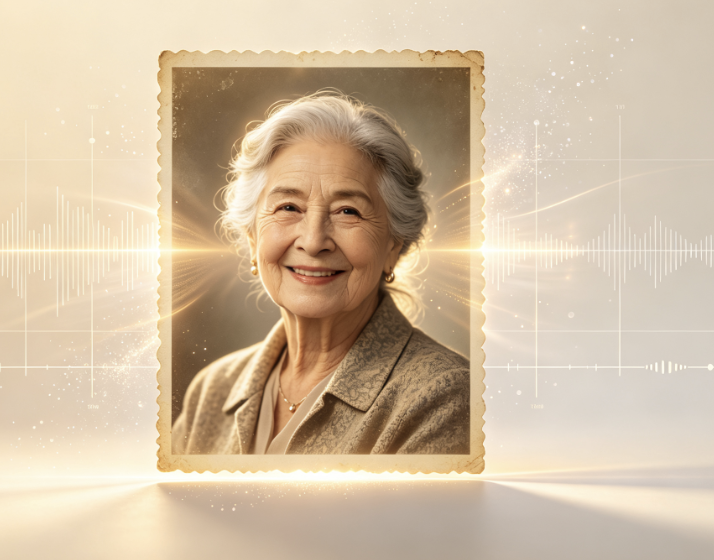
Make a photo speak with natural voice.
Animate photo →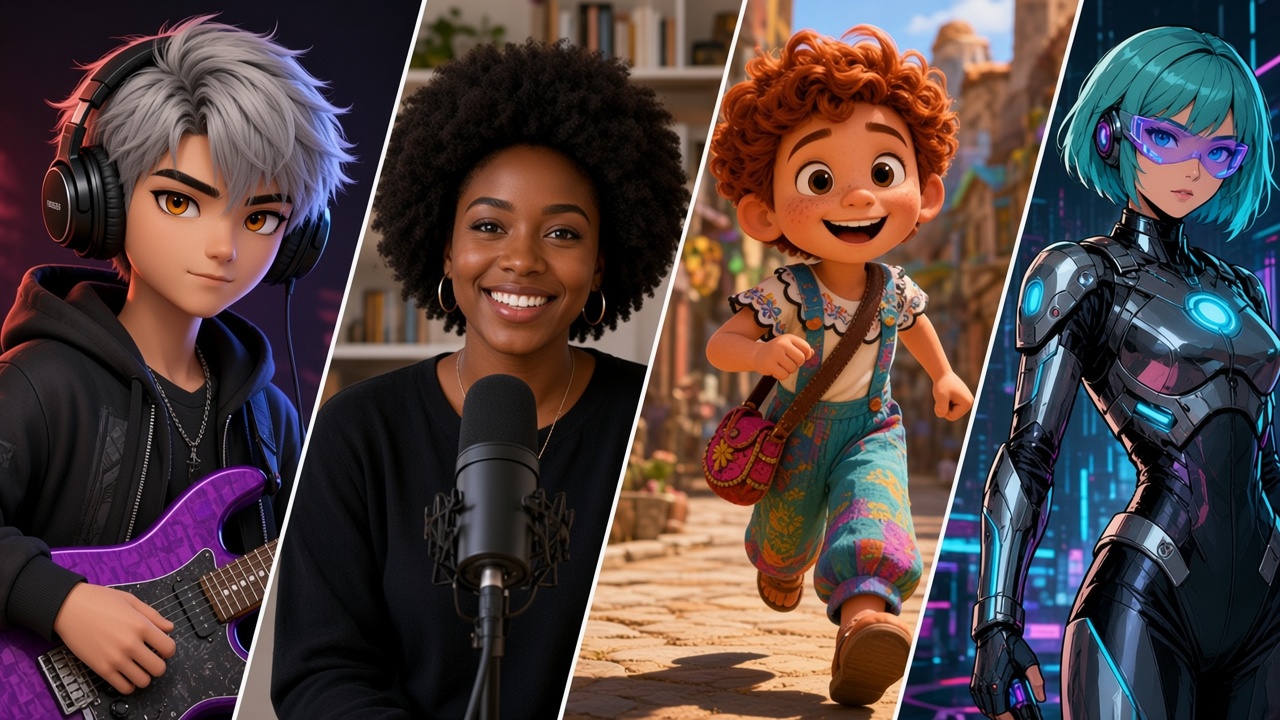
Create and edit images from prompts or photos.
Create image →
Turn prompts or stills into short AI videos.
Create video →Popular AI image and video templates people are making on Vocalove.
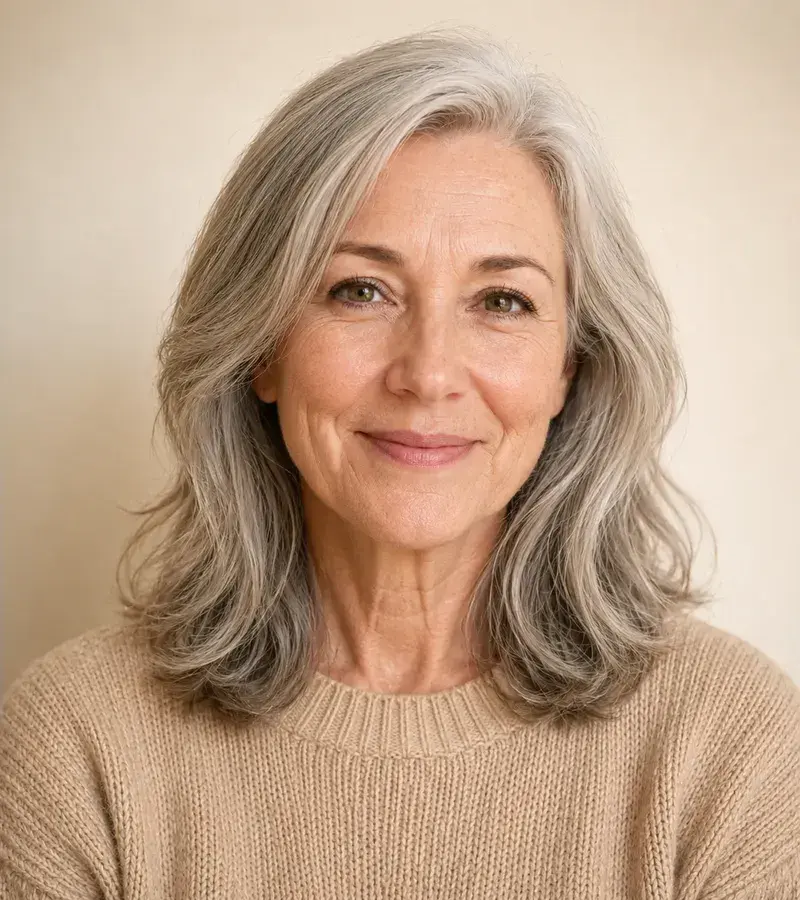 AI Age Filter preview
AI Age Filter
Create Now AI Baby Generator preview
AI Baby Generator
Create Now AI Kissing Video preview
AI Kissing Video
Create Now AI ASMR Video preview
AI ASMR Video
Create Now Charlie Brown Christmas AI preview
Charlie Brown Christmas AI
Create Now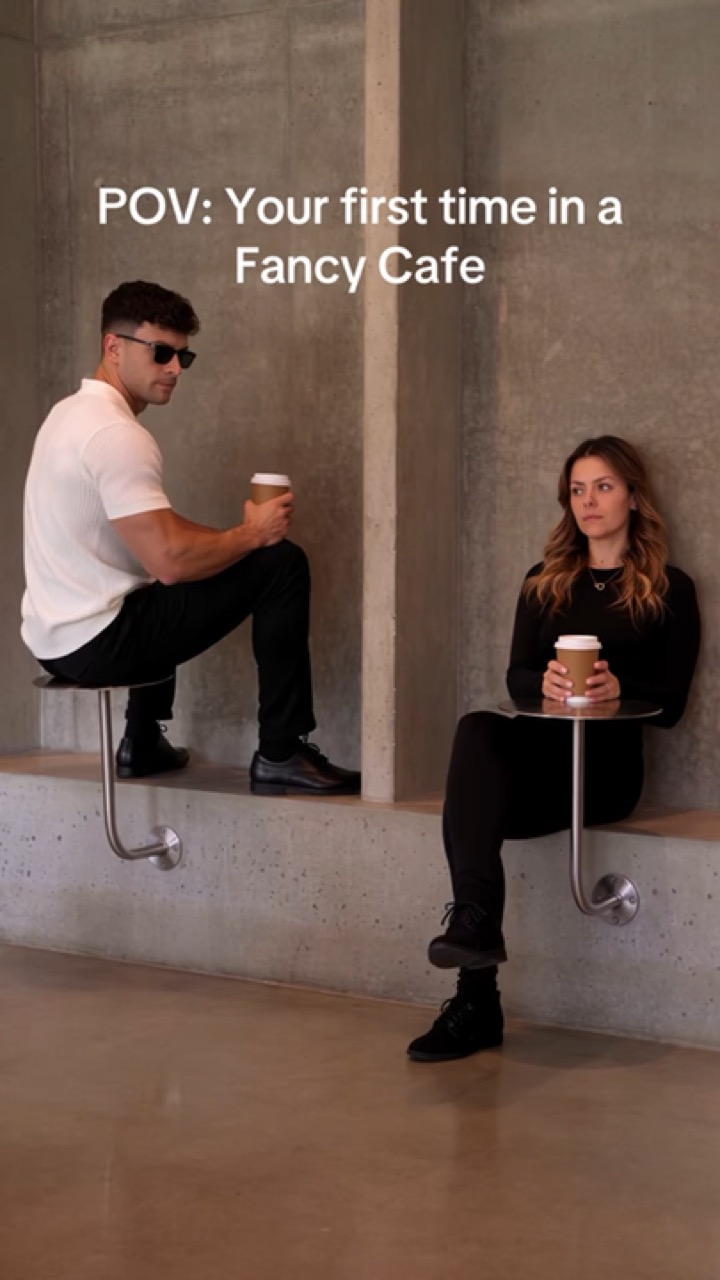 First Time Fancy Cafe AI preview
First Time Fancy Cafe AI
Create Now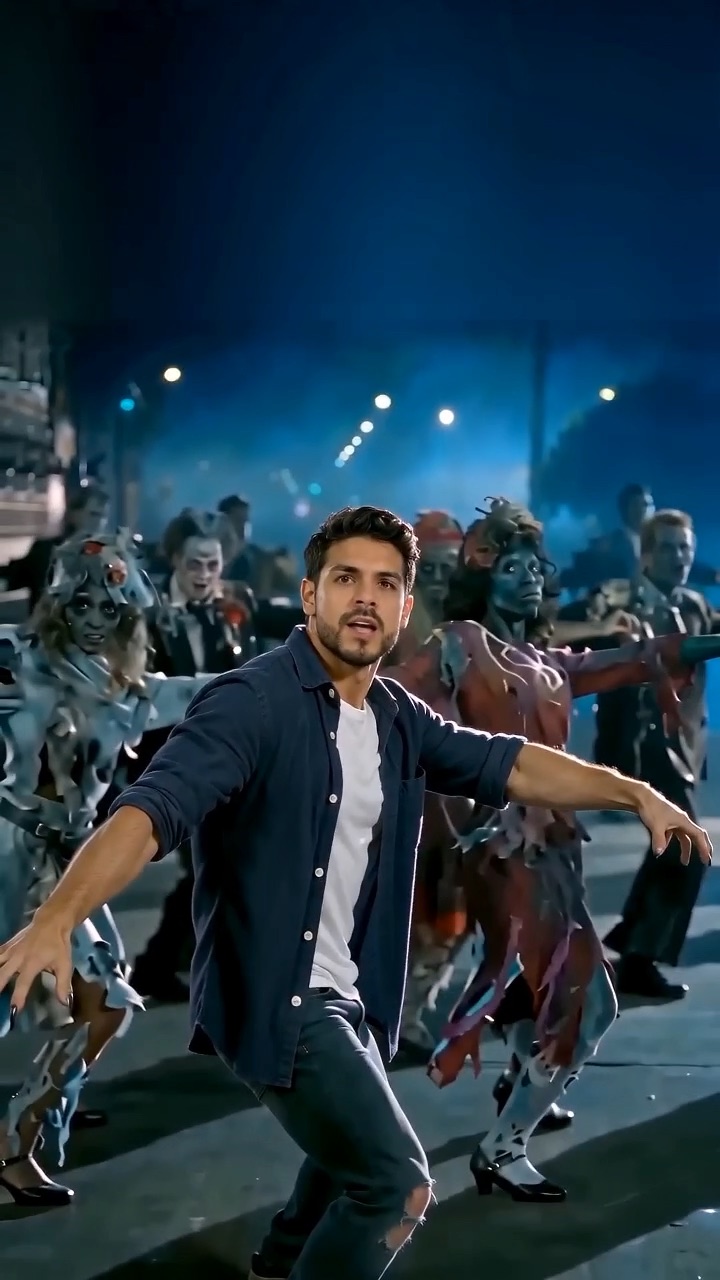 Thriller Dance AI preview
Thriller Dance AI
Create NowMirror Panther AI
Create NowPick a familiar voice, type a line, preview and download MP3.
Memorial video
Turn a cherished photo and a familiar voice into a talking portrait keepsake — for remembrance, birthdays, and family moments. Clone a voice you have permission to use, then generate in your browser.
From idea to download in three steps — AI Voice, AI Image, or AI Video in one studio.
Step 1
Choose AI Voice, AI Image, or AI Video.
Step 2
Enter a prompt, upload an image, or write your script.
Step 3
Create your content and download the result.
One creative studio in your browser — clone speech, edit images, and generate short videos without jumping between apps.
Choose a built-in voice for a quick preview, or clone from a sample: record in the browser or upload mp3, wav, or m4a you have permission to use. A clear clip in a quiet room is enough — welcome credits cover early tries so you can hear the match before you top up.
Type the words you want spoken. The model returns new audio in that voice — not a generic stock TTS read. Clone mode often takes one to three minutes; built-in speech is faster. Download the audio, or continue into Talking Photo Videos when you want a portrait to lip-sync the same line.
Stock TTS is built for assistants and announcers. Cloning is for speech that should sound like a specific person you are allowed to use — a parent’s cadence on a birthday line, a character voice for a short, or narration that has to stay consistent across clips.
Permission rules stay explicit: clone only voices you own or may use. Uploads power your generations — they are not sold for unrelated model training. Delete creations when you want; credits are one-time packs, not a subscription.
Voice-only projects stop at the download. When you need a face with the speech, open Talking Photo Videos. Memorial and tribute keepsakes live in one dedicated section on this page — including memorial video, funeral slideshow, and pet memorial video — so the homepage does not repeat that story in every block.
Ready to create? Start with voice cloning, open AI Image or AI Video from the studio above, or scroll to Trending Now for a template. vocalove runs in the browser — pick a tool, add your input, generate, and download.
What the image and video tools actually do — features you can open today, and where people use them.
Use the AI Image Editor to upload a photo and describe the change in plain language — outfit swaps, background cleanup, lighting, or a new look. Dedicated tools cover hairstyle and hair color, stylized character art, old photo restoration for scratched family scans, plus poster, menu, and infographic layouts when the brief is marketing rather than a selfie. Exports are downloadable JPEGs you can keep, post, or reuse in a talking-photo or video project later.
Start in the AI Image Editor for general text-guided edits, open AI Poster Generator for flyers and social graphics, or try AI Headshot Generator when you need a polished portrait from a selfie.
Common uses: refresh product shots, restore a faded family photo, generate a character for a short, or clean a portrait before you add speech or motion.
AI Video Generator turns a text prompt or still image into a short clip — useful for social drafts, product demos, storyboards, and trend templates. Switch between image-to-video and text-to-video, pick models such as Seedance, Kling, Wan, or Veo, and set aspect ratio and resolution for your feed. Talking Photo Videos is the lip-sync path: a clear portrait plus cloned or built-in audio so the face speaks the line. Welcome credits let you explore; watermark-free downloads use credits from your balance.
Open the AI Video Generator to compare models, jump to Talking Photo Videos for a speaking portrait, or browse Trending Now when you want a ready-made dance or meme template.
Common uses: a 5–10s social clip from one photo, a product teaser from a prompt, a birthday line on a talking portrait, or a trend dance face-swap without a timeline editor.
Voice. Image. Video.
Many tools jump straight to a talking face with stock narration. vocalove lets you start with speech that matches a sample you can use, then move into image edits or short video in the same account — so the voice, the still, and the clip stay connected.
vocalove: create the audio, refine the still, generate the clip — without juggling separate apps.
Voice. Image. Video.
Tribute videos, guides, and related tools — same voice cloning, different occasions.
One login covers speech, stills, and short video. Clone or pick a built-in voice, edit images, and generate clips with the same credit balance — welcome credits to explore, one-time packs when you need watermark-free HD.
Clean up or restyle a still in the AI Image Editor, restore an old scan, or generate a figure with the AI Character Generator. Hair tools, headshots, and poster layouts stay under the same account.
Then combine what you need: a talking photo, an AI video draft, or a poster — sample, edit, generate — without exporting into a third-party editor just to sync pieces by hand.
Quick answers about the creative studio — voice cloning, AI image, AI video, credits, and what you need permission to use.