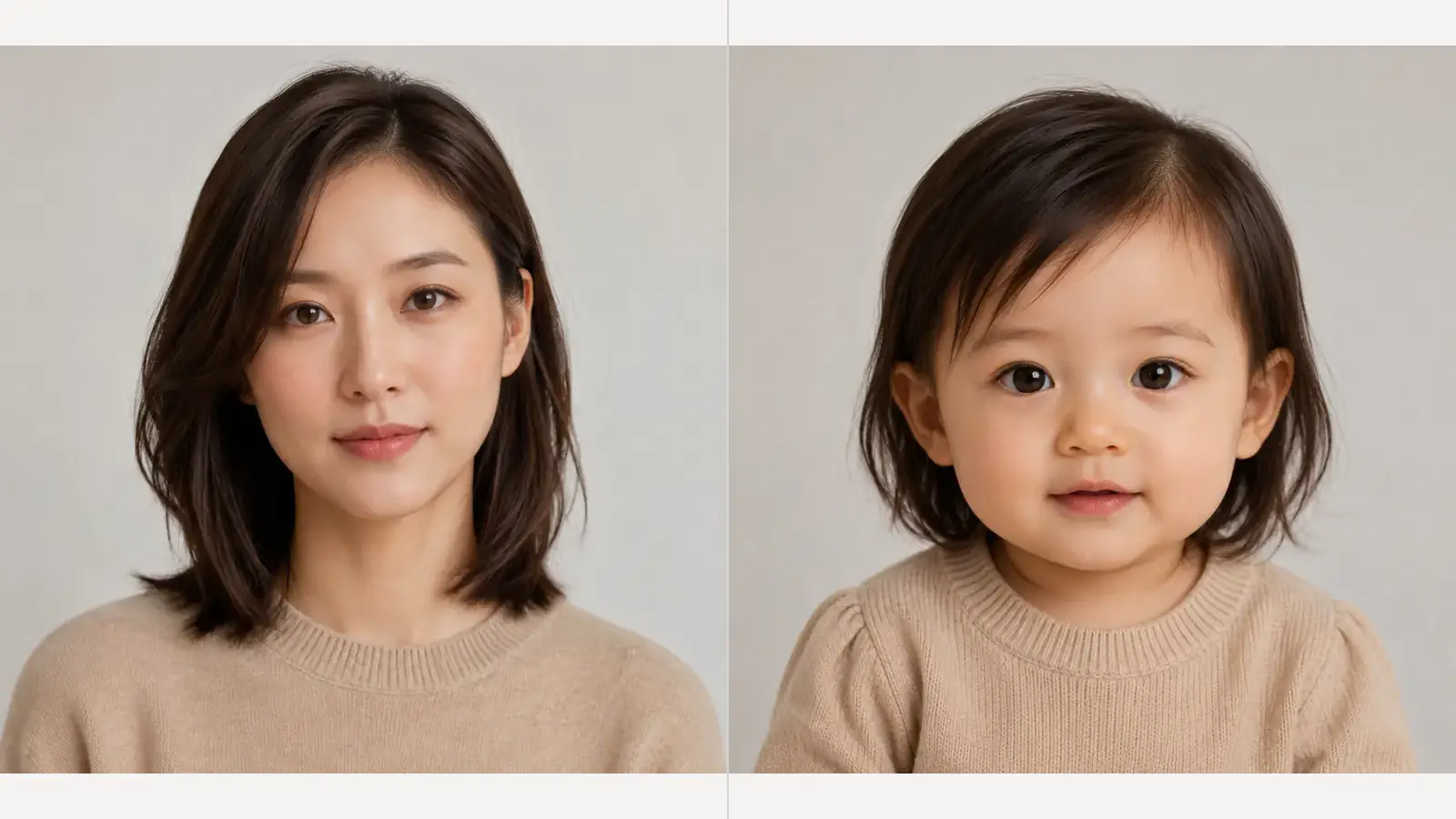
Baby
Transform the portrait into a fictional baby-style version with natural infant proportions and a fully clothed neutral look.
Upload one clear portrait and choose a life stage — baby, child, young adult, middle age, or older adult.
 Example · click to replace
Use a photo where the face and head are clearly visible.
Creative life-stage transform only — not a real age prediction or medical assessment.
Per-edit billing · 1 credit ≈ $0.01
Free to preview in your browser — no credit card. New accounts start with 5 free credits that never expire, plus a free daily pool. Watermark-free HD exports use credits only when you're ready to download.
Each example uses the same portrait — only the selected life stage changes.
Transform the portrait into a fictional baby-style version with natural infant proportions and a fully clothed neutral look.
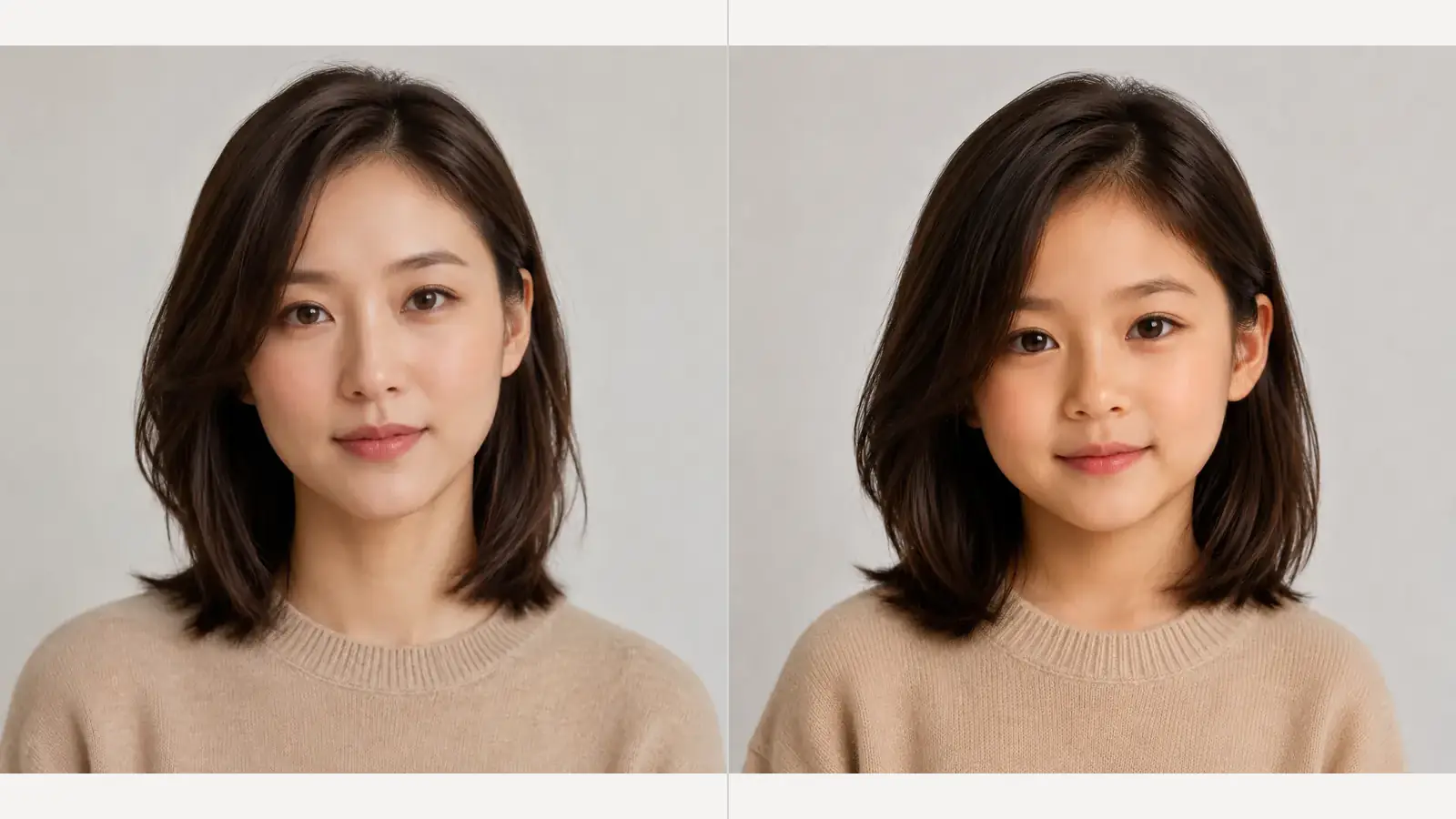
Transform the portrait into a fictional child-style version with natural age-appropriate proportions and the same photo context.
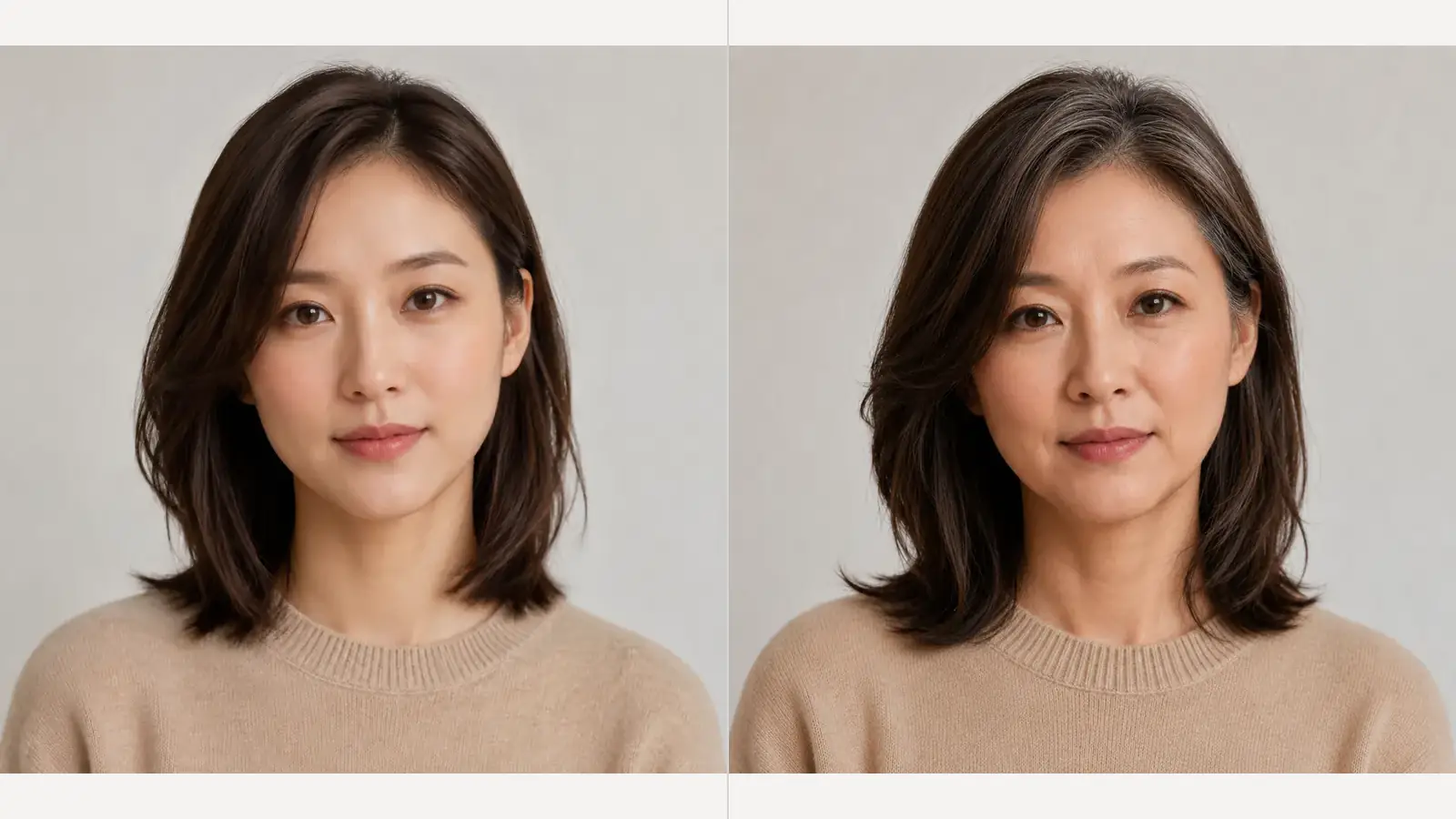
Transform the portrait into a natural middle-aged adult version with subtle mature facial structure and realistic skin texture.
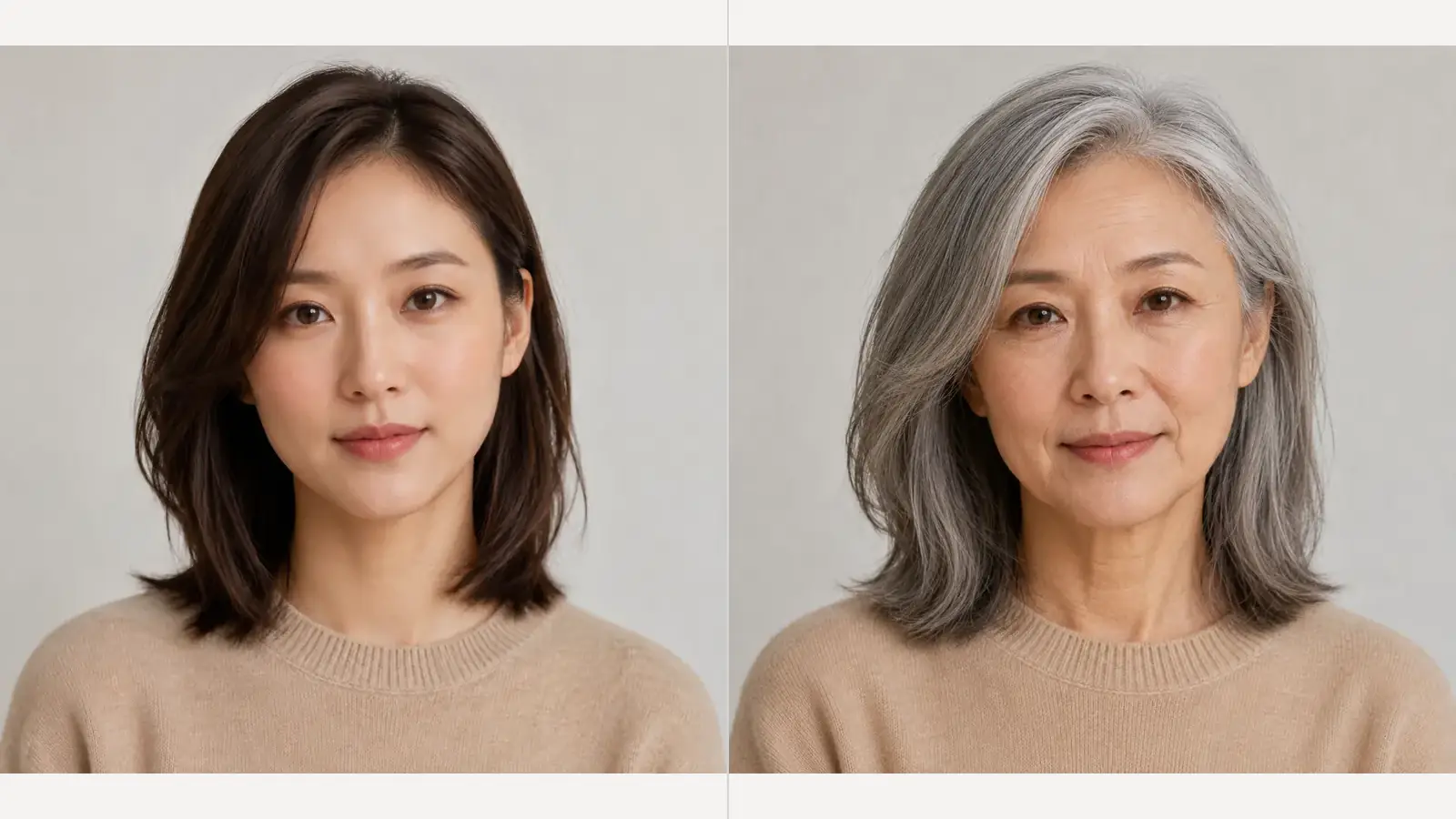
Transform the portrait into a natural older-adult version with silver-gray hair, natural age lines, and credible skin texture.
One portrait, one life stage, then download the version you like.
Choose a well-lit, front-facing photo. Keep the full face, hairline, neck, and visible hands unobstructed so the age change has more detail to work with.
Pick Baby, Child, Young Adult, Middle Age, or Older Adult for a full look. Use Custom when you want a specific age, gentler change, or details like natural gray hair.
Create the age transform, review it in the preview panel, then download the version you like.
An AI age filter adjusts visible face, hair, skin, neck, hands, and clothing for the selected life stage while keeping the person and photo composition recognizable.
Results are creative image transforms — not a real age estimate, medical assessment, or a forecast of anyone's future appearance.
Each life stage guides facial proportions, skin texture, hair, neck, hands, and visible clothing — not a simple gray-hair overlay.
One-click full life stages, or describe a target age and the details you want to emphasize in Custom mode.
Sign up for 5 free credits that never expire. Each age-filter generation uses 10 credits — see Pricing for packs and the free daily pool.
Baby, Child, Young Adult, Middle Age, or Older Adult. Custom mode lets you describe a specific age look instead.
No. The age filter is designed for one clear portrait.
Yes. Switch to Custom and describe the target age or details such as natural gray hair or a gentler change.
Prompts ask the model to keep recognizable facial cues, pose, clothing, lighting, and background where possible — results still vary with the source photo.
Lighting, pose, hair occlusion, image quality, and how clearly the face is visible all affect the transform.
No. It is a creative visual transformation, not a real prediction or age assessment.
New accounts get 5 welcome credits. Each generation uses edit credits.
Create a fictional baby portrait from one or two parent or couple photos.
Try now →Try different hairstyles while keeping the person and photo context recognizable.
Try now →Restore and colorize old photos while improving visible detail.
Try now →